We asked AI to build Othello
Just say "build a browser-playable Othello game."
Here is the actual flow, from file creation and edit approvals to launching it in a browser.
Model used: Gemini 3.8 Flash. Total API cost for the whole session: about $0.2.
* Screenshots were taken with the Japanese UI (Teaspoon IDE's UI language is switchable in Settings). English-language screenshots are coming soon.
What happened
- We asked for a browser-playable Othello game → the AI created
index.html/script.js/style.css - It also generated a
readme.mddescribing the project on its own - "Add a hint feature" → the AI proposed diff edits across 4 files, which we reviewed and approved
- "Launch it in the browser" → the AI emitted
start index.html, we approved, and it ran - A working Othello game opened in the browser — done
1. Teaspoon IDE at work
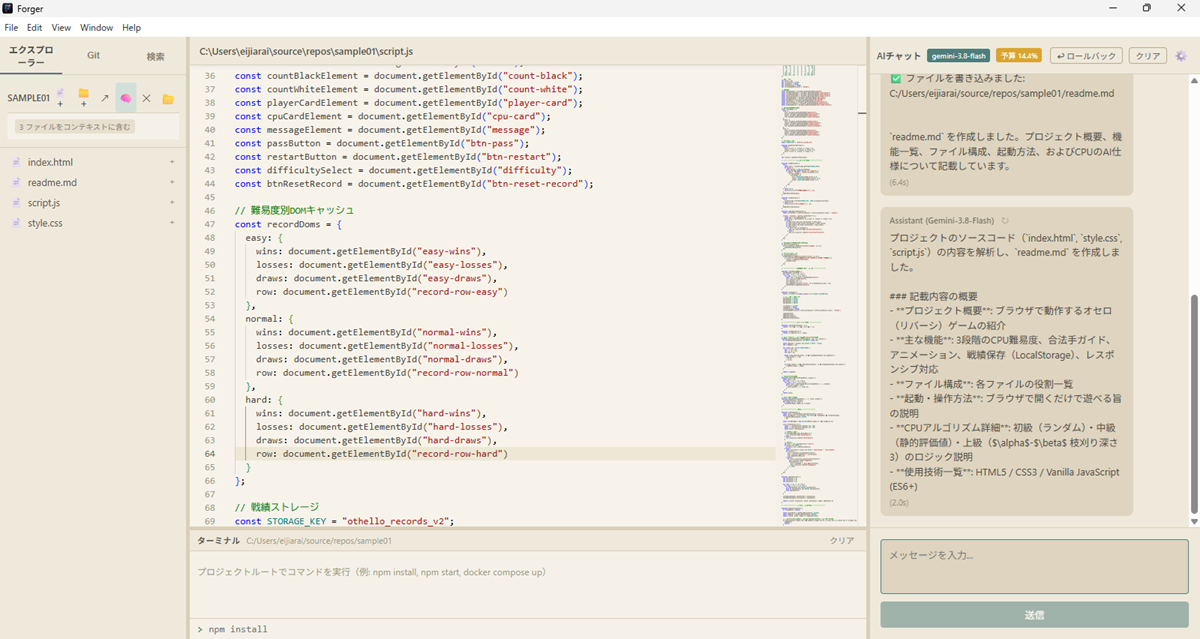
Once instructed, the AI works autonomously across multiple steps — listing, creating, and editing files.
The chat pane on the right shows the model used (gemini-3.8-flash) and each response's
turnaround time (e.g. (6.4s)). The generated readme.md even includes the project overview
and an explanation of the CPU algorithm.
2. Approving file edits
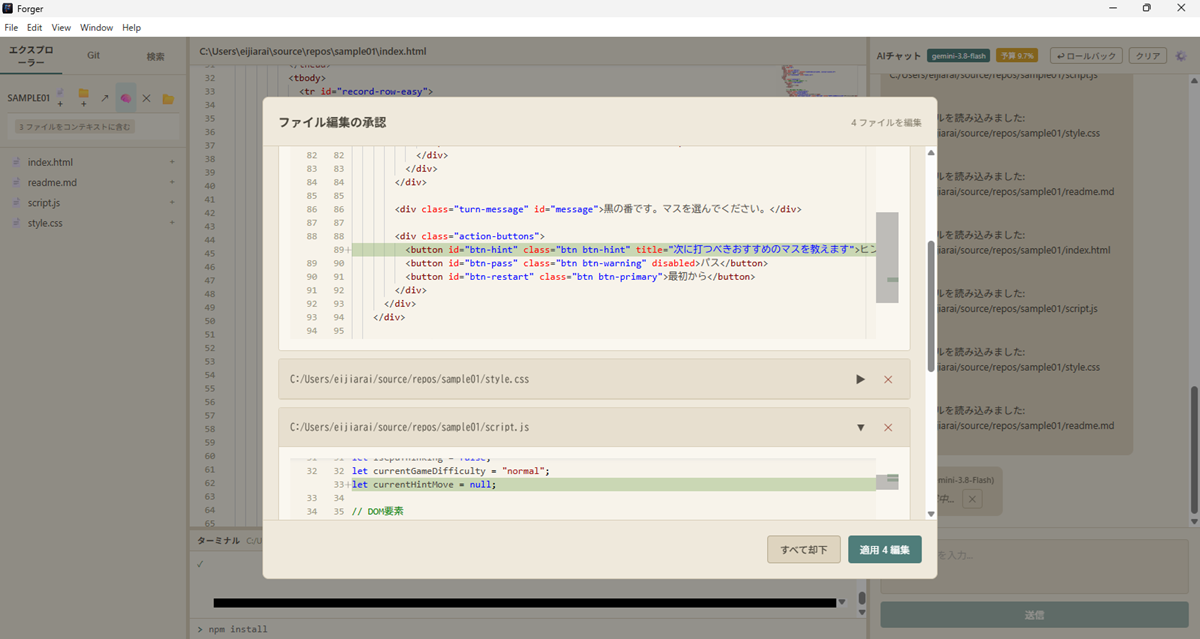
When we asked to add a hint feature, the AI proposed diff edits spanning 4 files. Changes are never written directly — this approval dialog lets you review each diff and choose Apply or Reject. And even after applying, "↩ Rollback" can undo just the AI's changes.
3. Approving command execution
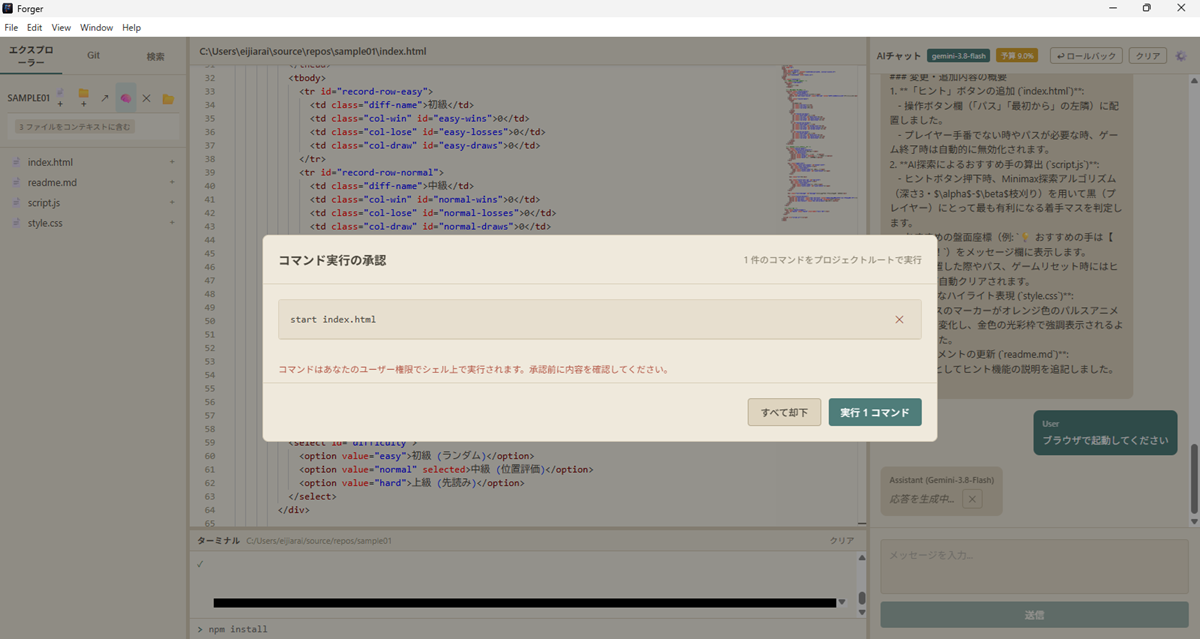
"Launch it in the browser" made the AI emit a start index.html command.
Commands run with your user privileges, so an approval dialog always shows the exact command first.
Approving it makes Teaspoon IDE open the browser.
4. The finished Othello
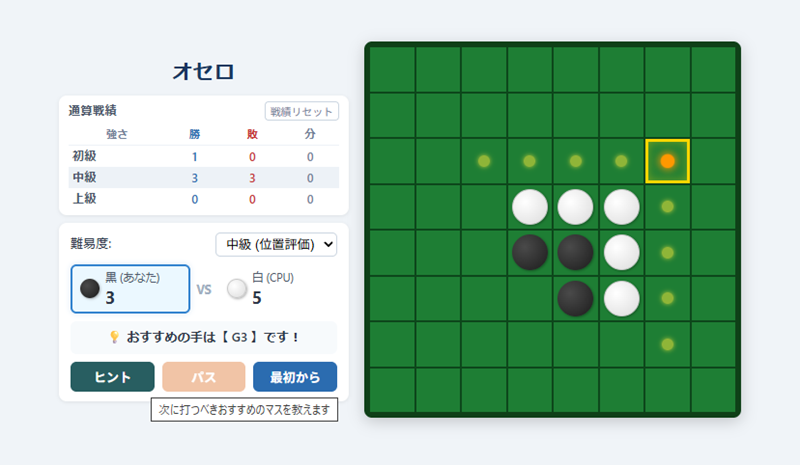
A fully playable Othello game runs in the browser — three CPU difficulty levels (random / positional evaluation / alpha-beta lookahead), the hint feature we added ("best move: G3!"), saved win-loss records, and pass/restart controls.
What this example shows
- Safe by approval File writes, edits, and command execution all require approval — the AI never proceeds on its own.
- Autonomous multi-step work From generation to docs, feature additions, and launching — each request runs through multiple self-directed steps.
- Real cost: about $0.2 Gemini 3.8 Flash with BYOK (bring your own key) — no markup, pay only for what you use. With Ollama local LLMs it can even be completely free and offline.
- Easy to undo Checkpoints and rollback let you safely revert only the files the AI touched.
* The "Budget xx%" badge in the chat header appears when organization (centrally managed) mode is in use. See Teaspoon IDE Organization for details.
Try it yourself
Teaspoon IDE is free to download. All you need is a Gemini API key (free tier available) or a local LLM via Ollama.